How to do a stocktake in Shopify with a barcode scanner
A stocktake compares what is on your shelves with what Shopify says you have, then corrects Shopify where the two differ. Reordo's stocktake works with a barcode scanner that types into a text box and presses Enter, and you can also type counts by hand. Nothing changes in Shopify until you apply the count.
Shopify's admin also has stock counts of its own, with scanning. This guide covers Reordo's version, which is part of the Starter plan.
Tap or click a screenshot to open it full size.
Step 1: Check that your plan includes stocktake
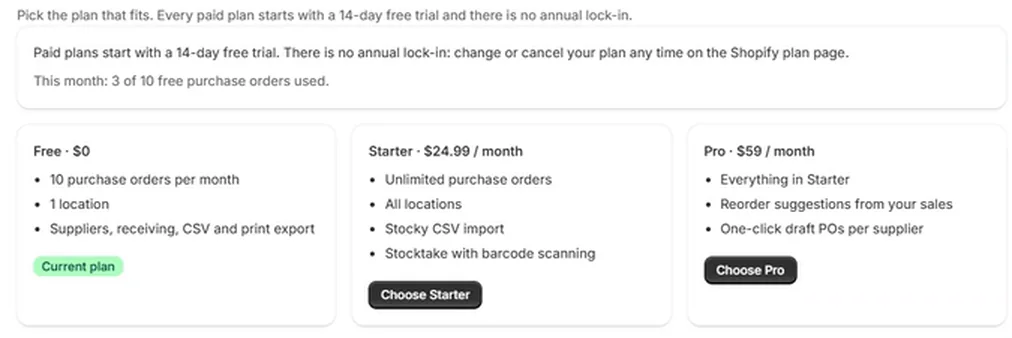
Open Plans in the Reordo menu. Stocktake with barcode scanning is listed under Starter, and Pro includes everything in Starter. If you are on Free, choose Starter or Pro; Shopify's plan page opens and shows the 14-day free trial.
Step 2: Start a stocktake for one location
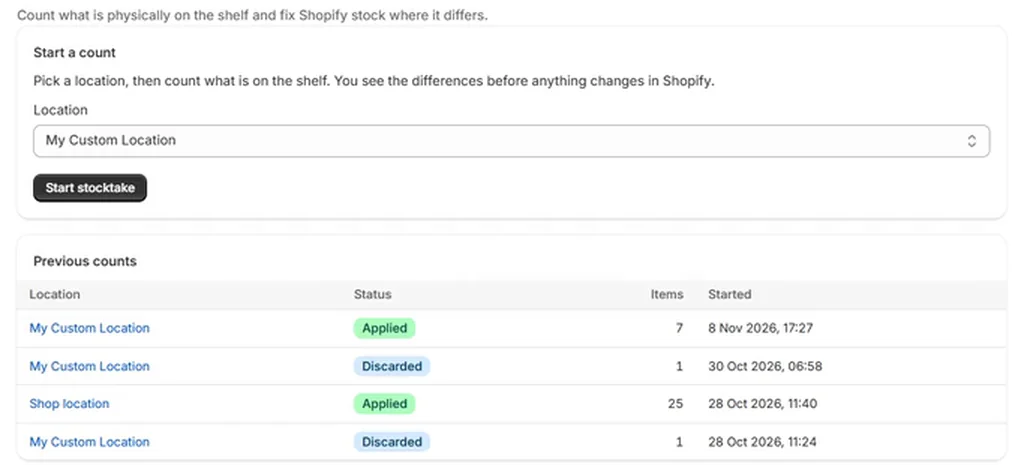
Choose Stocktake in the Reordo menu. Under Start a count, pick the location and choose Start stocktake. Reordo lists the products stocked at that location, each with the quantity Shopify expects. Earlier counts appear under Previous counts with their status.
Step 3: Scan the products
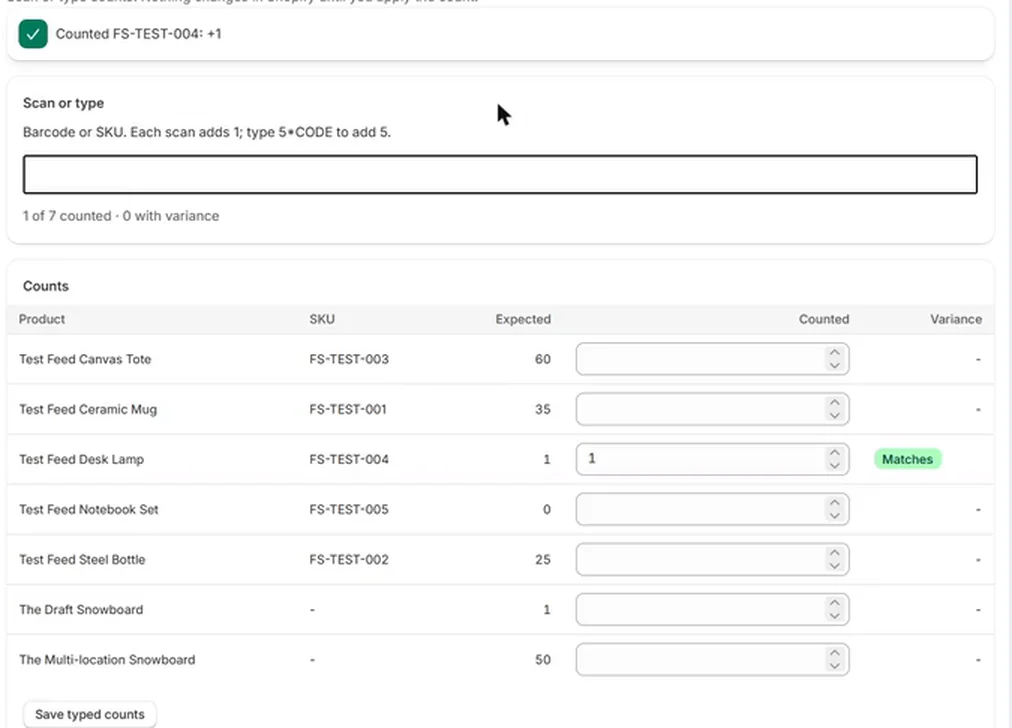
Click the box under Scan or type. Reordo keeps the cursor there after every scan. Scan a barcode or SKU and the product's count goes up by 1. A confirmation such as "Counted FS-TEST-004: +1" appears, and the summary line shows how many products are counted and how many differ.
To add several at once, type a number, an asterisk and the code, for example 5*CODE. The code followed by the number works too.
Step 4: Or type the counts
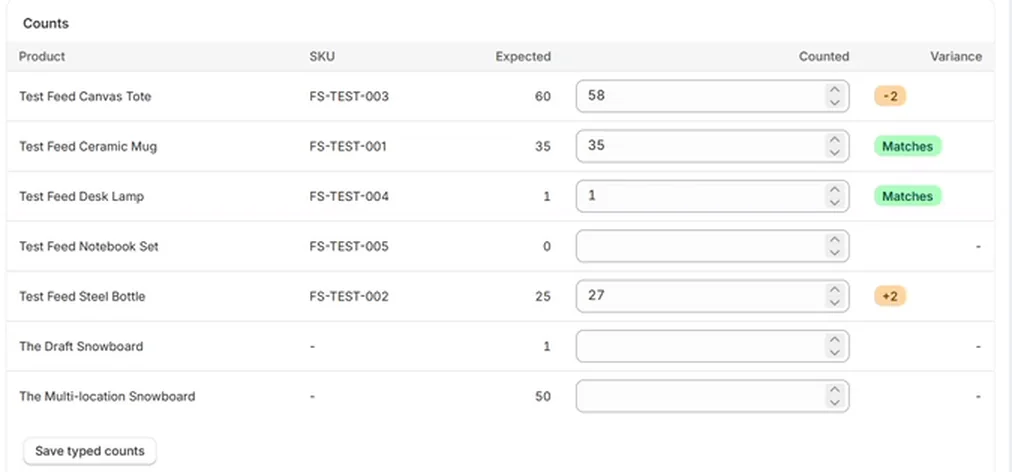
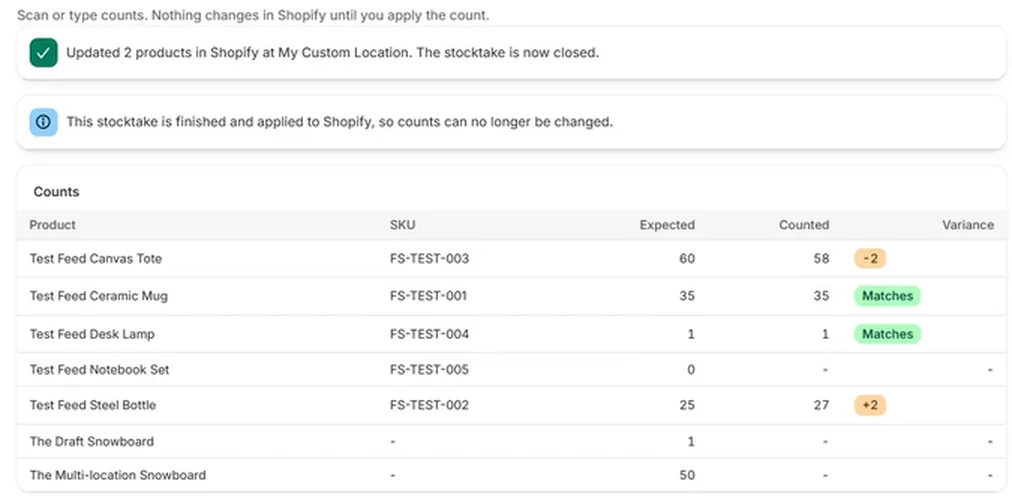
You can also type a number into the Counted box for any product, then choose Save typed counts. The Variance column compares your count with Shopify's expected quantity: Matches, or a difference such as -2 or +2.
Products you have not counted stay blank and are left alone. If a product truly has none on the shelf, type 0 so the count is recorded.
Step 5: Review the differences, then apply
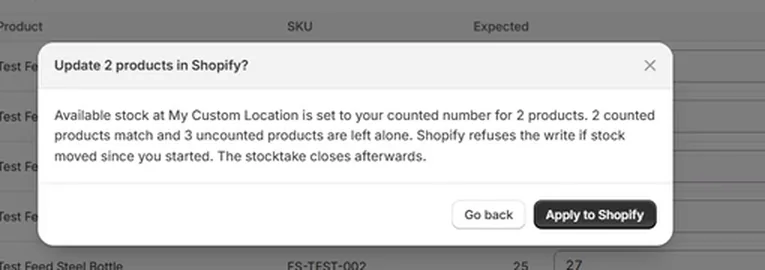
At the bottom, Finish explains the rules: only counted products are changed, uncounted products are left alone, and Shopify refuses the write if stock moved since you started, so sales made during the count are never overwritten.
Choose the button that says how many changes will be applied. A confirmation asks, for example, "Update 2 products in Shopify?" and says how many counted products match and how many uncounted ones are left alone. Choose Apply to Shopify to set available stock at the location to your counted numbers. Go back returns to the count.
Step 6: Confirm the result
Reordo confirms how many products were updated and that the stocktake is closed. A closed count is read-only: its table stays as a record of expected, counted and variance for each product.
Prepare before you count
- Check that your products have a barcode or SKU in Shopify. A product with neither cannot be found by scanning, so type its count instead.
- Split the shop into sections and count one section at a time, so you always know what has been done.
- Count everything in the location, including boxes in the back room, before you apply the count.
- Pick a quiet time if you can. Sales during a count are safe, but they can make Shopify refuse a product's update and send you back to refresh.
- Decide before you start whether damaged or held stock belongs in the count, and keep it apart from the rest.
Reading the variance column
A negative variance, such as -2, means you counted fewer than Shopify expects. Units may be missing, or a delivery may never have been received into Shopify. A positive variance, such as +2, means you counted more than expected. A delivery may have been received against the wrong product, or returned stock may not have been added back. Matches means no change is needed.
Look at the largest differences first and recount those products before you apply. Counted boxes can be changed at any time until you apply the count.
How a scan finds the product
Reordo compares the scanned text with each product's barcode first and then its SKU, ignoring upper and lower case. If nothing matches, it says the code was not found at this location. Only products stocked at the location you chose are in the count.
When stock changes during a count
Selling while you count is normal. When you apply, Reordo asks Shopify to change each product only if its stock still equals the number it expected. If a sale or another edit moved it, Shopify refuses and Reordo shows a message: choose Refresh expected, review the variances, and apply again. Refreshing reloads the expected numbers from Shopify and keeps your counts.
If you want to throw the whole count away, Discard this count closes it without changing anything in Shopify.
Troubleshooting
Scanning does nothing
Click into the scan box first. Then scan into any text box to confirm the scanner types the code and presses Enter. Some scanners need to be set to keyboard mode.
It says a code was not found at this location
Either the product is not stocked at the location you chose, or its barcode and SKU in Shopify do not match what you scanned. Fix the barcode in Shopify or type the SKU instead.
A product is missing from the count list
The count lists products that are stocked at that location. Add the product to the location in Shopify, then start a new stocktake.
Applying fails with a message about stock changing
Stock moved in Shopify since you started. Choose Refresh expected, check the variances, and apply again.
The Stocktake page asks me to upgrade
Your store is on the Free plan. Stocktake needs Starter or Pro; open Plans to start the 14-day free trial.
Frequently asked questions
Can I use my phone camera to scan?
Reordo has no camera scanning of its own. The scan box takes typed text, so it works with scanners that type like a keyboard, and you can also type counts.
Does a stocktake set uncounted products to zero?
No. Only products you counted are changed. Type 0 for a product that has none on the shelf.
Can I count more than one location?
Start a separate stocktake for each location. Each count covers one location.
Does a stocktake change my product costs?
No. It changes available quantities only.
Which plan includes stocktake?
Starter ($24.99 a month, 14-day free trial) and Pro ($59 a month, 14-day free trial). It is not in the Free plan.