Stocky replacement: import your Stocky suppliers and purchase orders
Stocky stopped working on 31 August 2026. Shopify's migration page says your old purchase orders and stocktakes do not move across on their own, and that you need to export the records you want to keep. This guide shows how to bring Stocky supplier and purchase order data into Reordo from a CSV file.
The import reads any CSV with a header row, up to 2 MB. It matches each row to your Shopify products by SKU first and then by barcode, and it creates suppliers with their costs or past purchase orders. It never changes your Shopify stock.
Tap or click a screenshot to open it full size.
Step 1: Open the Import page
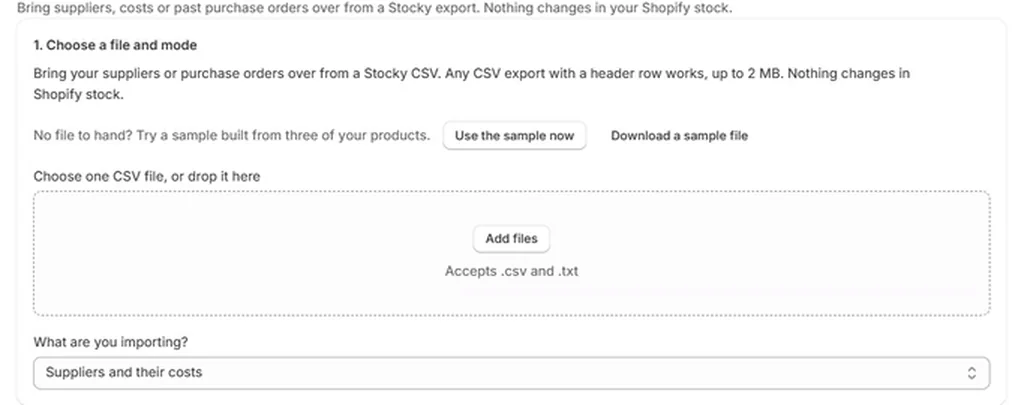
Choose Import in the Reordo menu. The page explains that suppliers, costs or past purchase orders come over from a Stocky export and that nothing changes in your Shopify stock. Add your file, or drop it into the box. The separator can be a comma, a semicolon or a tab.
No file to hand? Use the sample now loads a sample built from three of your own products, and Download a sample file gives you the same file to look at. The sample uses supplier names such as Sample Supplier A, so try it on a development store or delete those suppliers afterwards.
Step 2: Choose what you are importing
Under What are you importing?, pick one of two modes.
Suppliers and their costs creates each supplier named in the file and links the matched products with their unit costs. Running it again updates costs instead of duplicating suppliers.
Purchase orders groups rows by supplier and PO number and creates a purchase order for each group, with quantities and costs. If the file has a received column, received quantities are recorded and the order gets the matching status: Ordered, Partly received or Received. The original PO number is kept in the order's notes.
Step 3: Check the column mapping
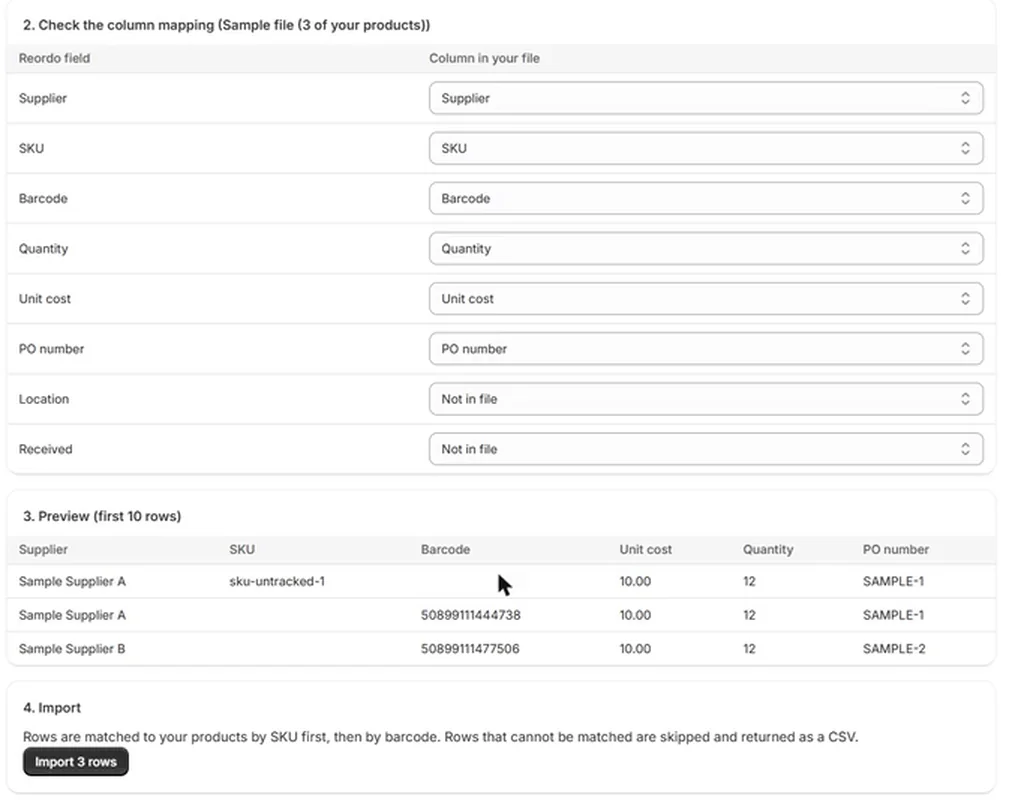
Reordo looks at the header row and matches columns by common names, such as supplier or vendor, SKU, barcode, quantity, unit cost, PO number, location and received. Review the table under Check the column mapping and correct any dropdown that is wrong. Set a field to Not in file if the file does not have it.
Reordo needs a Supplier column and a SKU or Barcode column. Purchase order mode also needs a Quantity column. If something is missing, it tells you which column to map.
Step 4: Preview and import
Preview (first 10 rows) shows how the first rows will be read. When it looks right, choose the Import button, which states how many rows it will import. Rows are matched to your products by SKU first and then barcode.
Step 5: Check the result and fix unmatched rows
A confirmation says how many supplier costs or orders were imported and how many rows could not be matched. If some were not, a warning appears with Download unmatched rows (CSV). The file lists the row number, the reason and the original values.
Fix the SKUs or barcodes in Shopify or in that file, and import the unmatched file by itself. That way rows that already imported are not imported again. In purchase order mode, importing the same rows twice would create the orders twice.

Step 6: Open Suppliers and Purchase orders to check
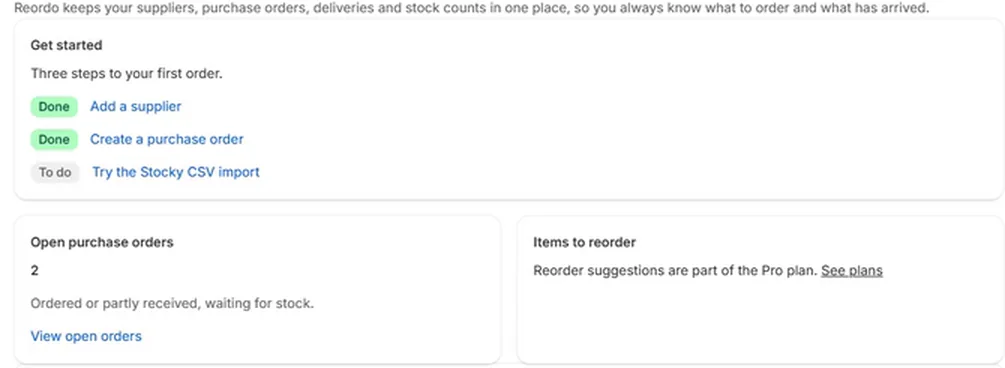
Open Suppliers to see the new suppliers and their linked products, and Purchase orders to see imported orders. Imported orders are history: received quantities are recorded in Reordo only, because your Shopify stock already reflects them. From here, new orders work as normal. Creating a purchase order shows the next step.
What the import brings, and what it leaves behind
Reordo imports the fields it can map: supplier, SKU, barcode, quantity, unit cost, PO number, location and received quantity. Anything that is not a column in your file stays behind. Stocktakes, notes and other Stocky settings are not imported.
Shopify's own purchase order CSV upload works differently. According to Shopify's help center, it only adds product line items to a new draft purchase order and cannot bring in past statuses, received quantities or supplier links. Shopify also says suppliers cannot be exported from Stocky on their own. Reordo builds suppliers from the supplier names in your purchase order export, so export the purchase order report with the supplier and cost columns included.
Preparing the file
A tidy file imports cleanly. Run Suppliers and their costs first, so new orders and reorder suggestions have costs to work from, and import past orders afterwards if you want the history.
- Keep one header row and one product on each row.
- Put the supplier's name on every row. A row without one is not imported.
- Save SKU and barcode columns as text so leading zeros are kept.
- Remove totals rows and notes lines from the bottom of the file.
- Use the sample file to see the layout Reordo expects.
Limits
A file can be up to 2 MB, up to 5000 rows, and up to 600 different SKUs or barcodes. For larger files, split them and import in parts.
Troubleshooting
It says to map a SKU or Barcode column
Reordo cannot match rows to products without one of them. Pick the right column in the mapping table, or add a SKU column to the file.
It says to map a Supplier column
Every row needs a supplier. Pick the column that holds the supplier or vendor name.
Every row came back unmatched
The SKUs or barcodes in the file do not match Shopify. Compare a few by eye. Spreadsheets often drop leading zeros from barcodes, so save those columns as text.
The file is over 2 MB
Split it into several files and import them one after another.
The Import page asks me to upgrade
Import is part of the Starter plan. Open Plans to start the 14-day free trial.
Frequently asked questions
Does Reordo connect to Stocky directly?
No. Stocky is no longer available, so Reordo works from CSV files you export.
Will importing change my Shopify stock?
No. The import page says so, and imported purchase orders only record history in Reordo.
Can I import without a Stocky file?
Yes. Any CSV with a header row and the columns above works, and the sample file lets you try the flow first.
What if I can no longer export from Stocky?
Shopify says you have read-only access to export for at least 90 days after 31 August 2026. Check Shopify's page for the current position.
Which plan do I need?
Starter ($24.99 a month, 14-day free trial) or Pro ($59 a month, 14-day free trial).