How to see what to reorder in Shopify (reorder suggestions, Pro plan)
Knowing which products are about to run out is the easy part. Knowing how many to order, from which supplier, is the work. Reordo's reorder suggestions use your recent sales, each supplier's lead time, the stock you have and the stock already on order to list what to buy, and they make one draft purchase order for each supplier.
Reorder suggestions are part of the Pro plan ($59 a month, 14-day free trial). Shopify's admin also offers suggestions through its Sidekick assistant, as Shopify's help center describes. This guide covers Reordo's version, which shows the numbers behind every suggestion.
Tap or click a screenshot to open it full size.
Step 1: Check that you are on Pro
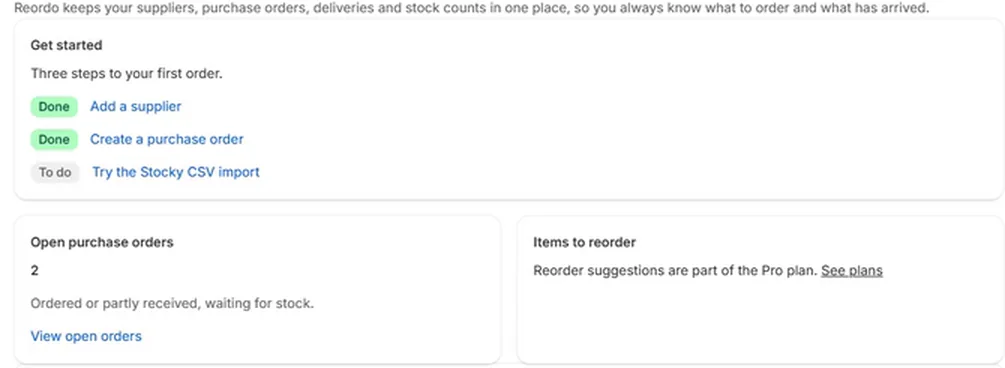
On the Free plan, the Items to reorder box on the Home page says that reorder suggestions are part of the Pro plan and links to See plans. Open Plans and choose Pro; Shopify's plan page opens and shows the 14-day free trial. Back in Reordo, the Plans page shows Pro as your current plan.
Step 2: Refresh your sales data
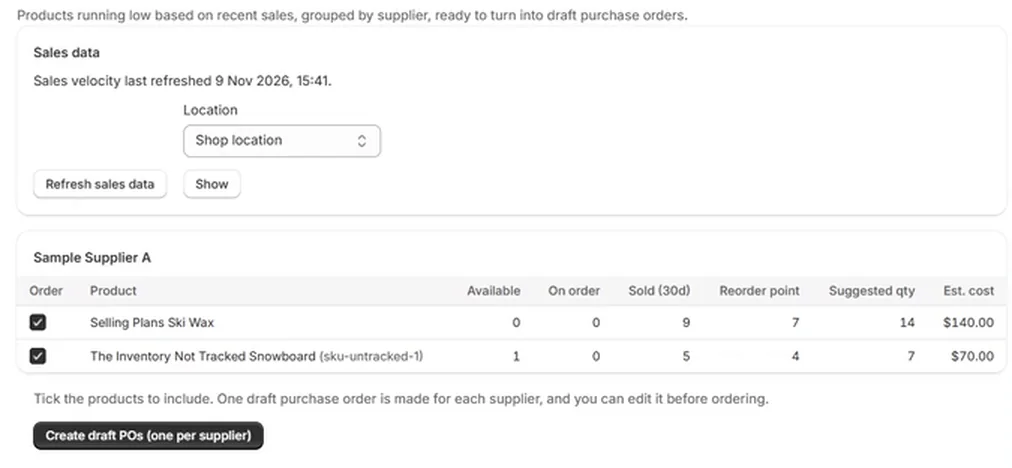
Choose Reorder in the menu. The Sales data box says when sales velocity was last refreshed. When it is more than 24 hours old, Reordo tells you to refresh it before you order. Choose Refresh sales data, pick a location and choose Show.
Step 3: Read the table
Products are grouped by supplier. For each one you see Available stock at the location, On order (quantity outstanding on open purchase orders), Sold over the window, the Reorder point, the Suggested qty and the Est. cost (suggested quantity times the supplier's unit cost).
A product appears when it sells and its available stock plus stock on order has dropped to its reorder point or below.
Step 4: Understand the numbers
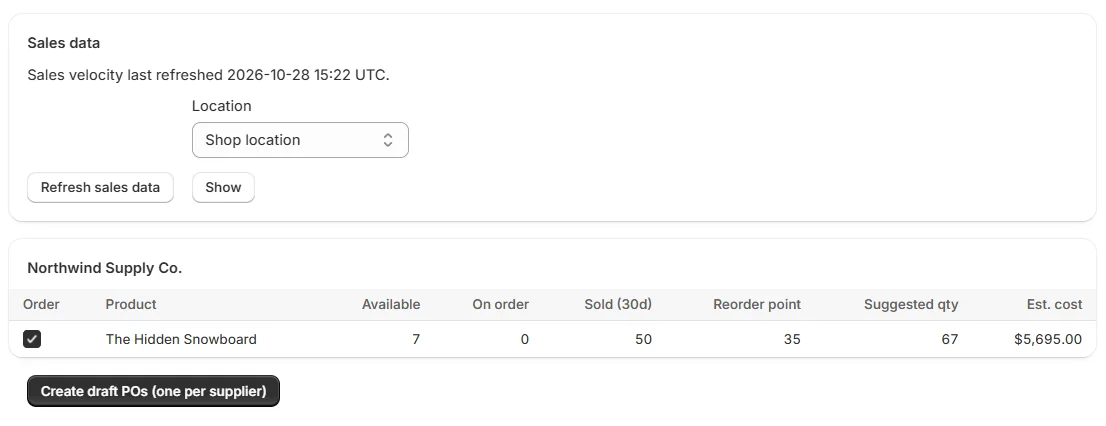
Reordo uses simple averages. The daily rate is the units sold divided by the days in your sales window. The reorder point is the daily rate times the supplier's lead time plus your safety days, rounded up. The suggested quantity is the daily rate times the lead time plus your cover days, rounded up, minus what is available and what is already on order. It is then raised to at least the minimum order quantity and rounded up to a multiple of the pack size.
A worked example from the screenshot in step 2: a product sold 9 in 30 days, so the daily rate is 0.3. With a lead time of 14 days and 7 safety days, the reorder point is 0.3 times 21, rounded up, which is 7. With 30 cover days, the target is 0.3 times 44, rounded up, which is 14. Nothing is available or on order, so the suggestion is 14.
Step 5: Create the draft purchase orders
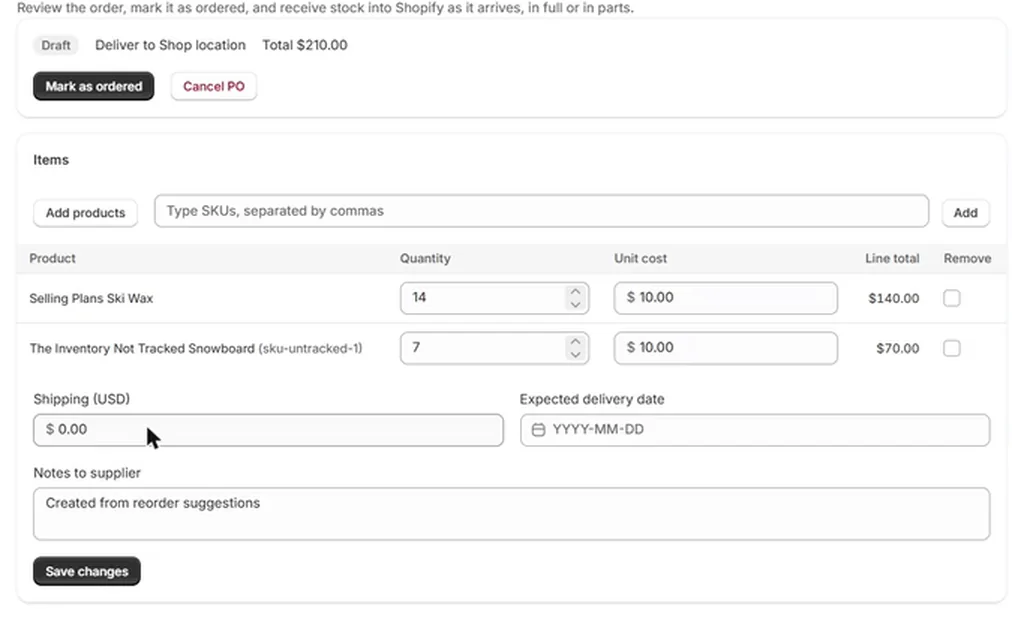
Every product has a tick box in the Order column. Untick what you do not want, then choose Create draft POs (one per supplier). Reordo makes one draft for each supplier with the suggested quantities and the supplier's costs, and puts "Created from reorder suggestions" in the notes.
Step 6: Review, send and mark as ordered
A draft is an ordinary draft. Change quantities, add products, set the delivery date, then send it and choose Mark as ordered. The printing and emailing guide covers sending. Once ordered, the quantity counts as on order, so the same products do not show up again for the same shortage.
Settings that change the suggestions
Settings has three numbers. Sales window is how many days of sales to average, from 7 to 60; Shopify only gives apps the last 60 days of orders without extra approval. Safety stock is the extra days of stock to keep beyond the lead time. Cover is how many days of sales a suggestion should cover. Raise safety stock for slow suppliers, and raise cover if you order less often.
Choosing the three settings
- Sales window. A short window reacts quickly to a change in demand but is noisier. A long window is smoother but slower to notice a trend. Pick the length that matches how stable your sales are.
- Safety stock. Raise it for suppliers that are sometimes late or for products with uneven sales. Lower it for fast, reliable suppliers.
- Cover. This is how many days of sales each order should last. A bigger number means larger, less frequent orders. Match it to how often you place orders and how much cash you want tied up in stock.
Check the list before you create drafts
Read down the table with the following in mind. A one-off spike in sales can inflate a suggestion. A new product with little history can look slower or faster than it will be. A product you plan to stop selling does not need a new order. Untick any row you do not want in the draft.
What the suggestions do not know
The suggestions use average sales over the window. They do not know about seasons, promotions or a product launch, so look at the list before you create drafts. Online sales are not tied to one location, so every location's rate includes them, while point of sale orders count at their own location.
Troubleshooting
The page says nothing needs reordering
Every linked product at that location has enough stock for its lead time. Choose another location, or refresh sales data if it is old.
The page says sales velocity has not been calculated yet
Choose Refresh sales data. Reordo does not refresh in the background.
A product I expected is missing
It needs a supplier link, and it must have sold in the window. Check the link on the supplier page.
The suggested quantity looks too high or too low
Check the product's minimum order quantity, pack size and the supplier's lead time. Then check Settings: the cover and safety days change the result.
The Reorder page asks me to upgrade
Reorder suggestions need the Pro plan. Open Plans and start the 14-day free trial.
Frequently asked questions
Does Reordo order from the supplier automatically?
No. It makes drafts for you to review. You send each order yourself.
Which sales does it use?
Units sold per product from your recent orders, over the window you set in Settings (7 to 60 days).
Does it store customer data?
No. From orders it reads only the quantity sold of each product, not names, emails or addresses.
Does it handle seasonality?
No. It uses average daily sales over the window.
Which plan includes reorder suggestions?
Pro ($59 a month, 14-day free trial). Stocktake and CSV import are on Starter.